Order, delivery and returns
Would you like to track or cancel your Swisscom order or return material and old devices? On this page you will find all information about the order status, the return address and returns.
Track order status
Find out when your order will be delivered:
You will find the order status at any time in My Swisscom
Discover the world of Apple: smartphones, headphones, smartwatches, mobile phone cases and more.
Do you want to cancel your order? Contact us.
Questions about delivery
Here you will find answers to the most frequently asked questions about the delivery of your order.
I have not received my order. What can I do?
Check the current order status(opens in new tab) in My Swisscom. If the status is “Delivered”, please contact Swiss Post directly. There is nothing we can do in this case.
If you have any further questions, please contact us.
How long do I have to wait for delivery?
If the item you ordered is marked “Available for delivery” but you have not received it, even after several weeks, please contact us.
What happens if I am not at home when the delivery is made?
If you miss your delivery, the postal service will leave a collection note(opens in new tab). You can take this note to the post office to collect your package or request a redelivery.
Can I have the order delivered to a different address?
You can ask for your order to be delivered to an address of your choice. However, if you have purchased a mobile phone and concluded a new contract, we can, for legal reasons, only deliver it to the address stated in the contract. You must also be at home to receive the package and sign the contract yourself.
Does Swisscom also deliver abroad?
Swisscom only delivers to addresses in Switzerland.
When will I receive the WLAN-Box, Internet-Box and TV-Box?
You will receive your device in good time before your activation date. For more details, please see your order confirmation or check in My Swisscom(opens in new tab).
If you move house, we will deliver your order to your old address, unless you notify us otherwise.
Where can I find the delivery bill and warranty certificate?
Delivery notes and guarantee certificates for your orders can be viewed at any time in My Swisscom(opens in new tab).
Questions about pickup
How does pickup in store work?
When you order a device online, you can select "Pick up in store" as the
delivery method. Simply select the Swisscom store where the device is available.
Once you have successfully placed your order and made payment, your device will
be reserved for you at the selected store.
How can I see if a device is available in the shop?
You can check whether your desired device is available in a specific Swisscom shop
on the product page. When placing your order, select the shop where you would
like to pick up your device.
When can I pick up my device?
After placing your order, you will receive a confirmation and a collection slip with
a QR code. Once you have received this, you can collect your device from the
selected shop.
What do I need to bring with me to pick up my device?
Please bring the collection slip with the QR code (digital or printed) and valid ID.
The QR code will be scanned in the shop and your identity will be briefly
checked.
How long will my device be reserved for me?
Your device will be reserved for you for a limited time. If you do not collect it
within this period, the reservation will be automatically canceled and any
payment made will be refunded.
Can someone else pick up my device for me?
No, only the person who placed the order may collect it. A brief identity check is
carried out in the store.
Can I buy other products in the store?
Yes. When you pick up your device at the store, you can also purchase accessories or
additional services directly on site if required.
Returns
Here you will find the returns addresses and instructions on how to return material to Swisscom.
Can I return an order?
You can return the ordered item within 14 days in the sealed and unopened original packaging. In this case, enclose the return slip in the package.
If the device was part of a promotion and the conditions of the promotion excluded the return of the device, it is not possible to return it, even if the device is still unopened and sealed.
- Go to My Swisscom(opens in new tab) to find the return slip. This will also contain an address label.
- Print out the return slip and the address label.
- Place the return slip with the devices in the original packaging.
- Stick the address label to the package.
- Take the package to the post office, drop it off at any of the over 800 “Päckli Punkt” locations(opens in new tab) or use pick@home(opens in new tab) to arrange a collection from your home.
Can I return defective hardware?
You can return defective hardware to us within 14 days. It is important that you return the defective hardware in its original packaging, including all accessories. We will then contact you if we have any queries.
How do I get money for my old cell phone?
- In My Swisscom(opens in new tab), find the document entitled “Delivery_slip_Buyback.pdf”.
- Print the document with the return slip and address label.
- Place the return slip and your old mobile phone in a box (original packaging not required).
- Stick the address label to the box.
- Take the package to the post office, drop it off at any of the over 800 “Päckli Punkt” locations(opens in new tab) or use pick@home(opens in new tab) to arrange a collection from your home.
How does the "Take me back" sticker for returns work?
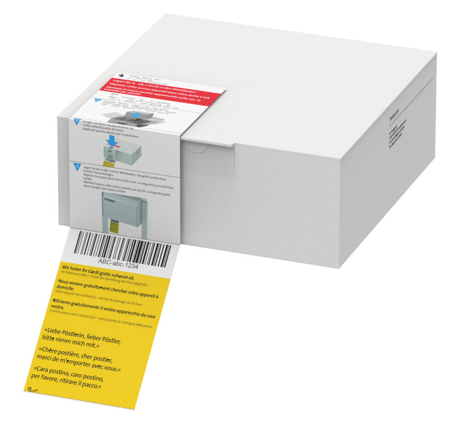
- Place the faulty device in a box (original packaging not required).
- Stick the “Take me back” label to the box.
- Follow the instructions on the label.
- Swiss Post will collect the package from your home, free of charge.
How can I return old appliances and materials?
- Place the items in a box or paper bag. (You do not need the original packaging or an address label.)
- Drop the package off, free of charge, at a Swisscom Shop or at any of the over 800 “Päckli Punkt” locations(opens in new tab).
Resetting your device
We will automatically reset old devices as soon as we receive them. If you would like to perform the reset yourself, please follow the instructions.
Internet-Box
- Connect the router to the power supply and switch it on.
- Wait until the light flashes red.
- Use a paper clip to press and hold the Reset button for 1 second.
- The reset is complete once the light stops flashing white.
Centro Business
- Connect the device to the power supply and switch it on.
- Wait until the Power LED turns on.
- Use a paper clip to press and hold the Reset button for 10 seconds.
- The reset is complete once the Power LED turns off.
TV-Box
- Switch on blue TV.
- Go to the main menu (button with a little house icon).
- Select Settings at the top left (cogwheel icon).
- Go to the “System” tab.
- Select “Reset TV-Box”.
Smartphone
Choose your support option

Manage in My Swisscom
Manage your products, services and data directly in your account.
Arrange a callback
Choose a time slot and get support from a specialist over the phone.

Möchten Sie etwas bestellen? Wir beraten Sie