Set up and use

Instructions (PDF)
Internet & WLAN
Managing
Data traffic
Security
Network
Get to know the device
Buttons and connections
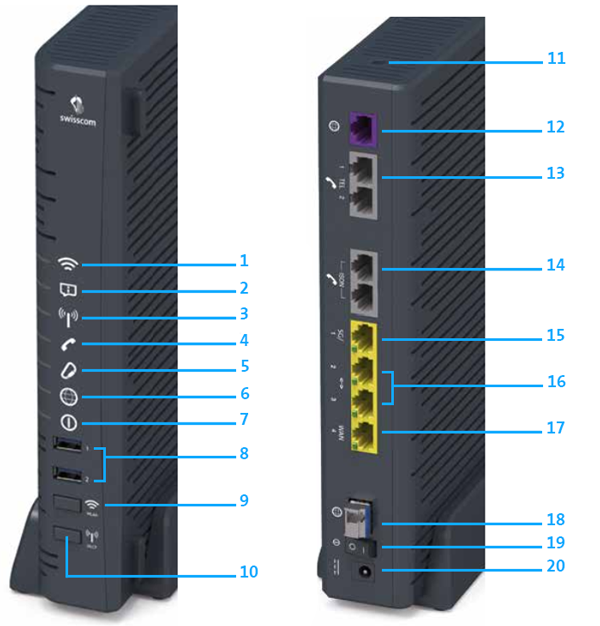
- WLAN LED
- Service LED
- DECT LED
- Telefony LED
- Internet Backup LED
- Internet LED
- Power LED
- USB 3.0 ports
- Press WLAN button briefly to switch on / off Press WPS button for four seconds to activate
- Press DECT button briefly to switch on / off Press for 3 sec. to find handset
- Reset button (press for 10 sec. with a paper clip)
- DSL port
- Analogue telephone ports
- ISDN telephone ports
- 4 Ethernet ports: SG (also for IP phones and LAN devices like point-of-sale terminals and security gateways)
- LAN ports (only normal Ethernet connections)
- WAN (for connecting to a second router)
- Fibre-optic link (with SFP module)
- Power button (on/off)
- Power supply connection
Overviews (PDF)
Frequently asked questions
What do the LEDs on my Centro Business mean?
Red, white, blue or green: the flashing or illuminated LED of your router shows you the current status of WLAN, telephony, backup, etc. Consult the the PDF instructions to see what the different LEDs mean.
Choose your support option
Möchten Sie etwas bestellen? Wir beraten Sie

Manage your products, services and data directly in your account.
Open My Swisscom(opens a new window)
The digital assistant Sam helps you with questions about your Swisscom products.
Start ChatGet personal help from experienced Swisscom customers.
Go to help